
Modern desktop systems are typically designed to be as energy-efficient as possible, and while great for the average consumer, this is rarely ideal for a professional video editing environment.
Default power settings are historically problematic when working with shared network storage, as workstation power balancing may interrupt or fully stop communication to network shares.
This can be especially impactful with external Thunderbolt/USB devices, and/or when running multiple applications. For example, the application running in the foreground may get resource priority, and power assertions may get released for background applications, or an external device may register as a "display device", which is allowed to sleep by default, or components may experience power re-balancing leading to resets, and so on.
The simplest way to ensure consistent power distribution is to disable sleep entirely, even if the workstation may never appear to be idle or to sleep.
(Similar recommendations for Windows machines are found here.)
While macOS has undergone many changes, and power settings move and vary between form factors and versions, the essential setting to consider in modern macOS is simply to prevent sleeping when the display is off.
For most form factors:
System Settings > Energy Saver > Prevent automatic sleeping when the display is off should be toggled ON
For laptops:
System Settings > Battery > Low Power Mode > Only on Battery (or Never)
and
System Settings > Battery > Options > Prevent automatic sleeping on power adapter when the display is off should be toggled ON
For older macOS versions:
Ethernet connections in macOS using the automatic configuration may use full duplex, flow control, energy-efficient-ethernet by default.
This has been found to impact performance and sometimes result in dropped frames when working with network shares.
To disable this setting, navigate to System Preferences and choose Network.
Select the appropriate ethernet connection and click Advanced.
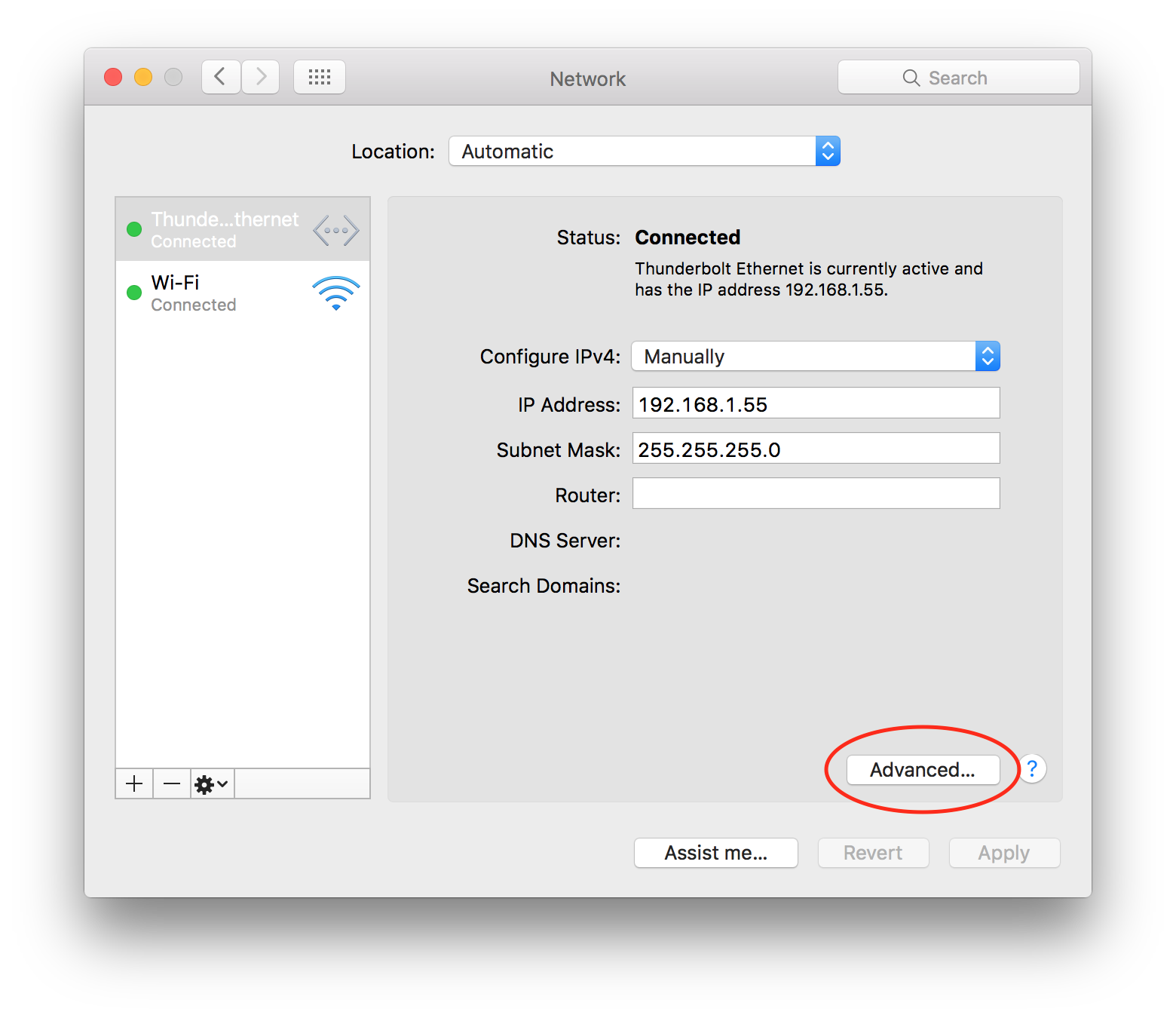
Click the Hardware tab, and then choose Manually from the drop-down menu next to the Configure: setting.
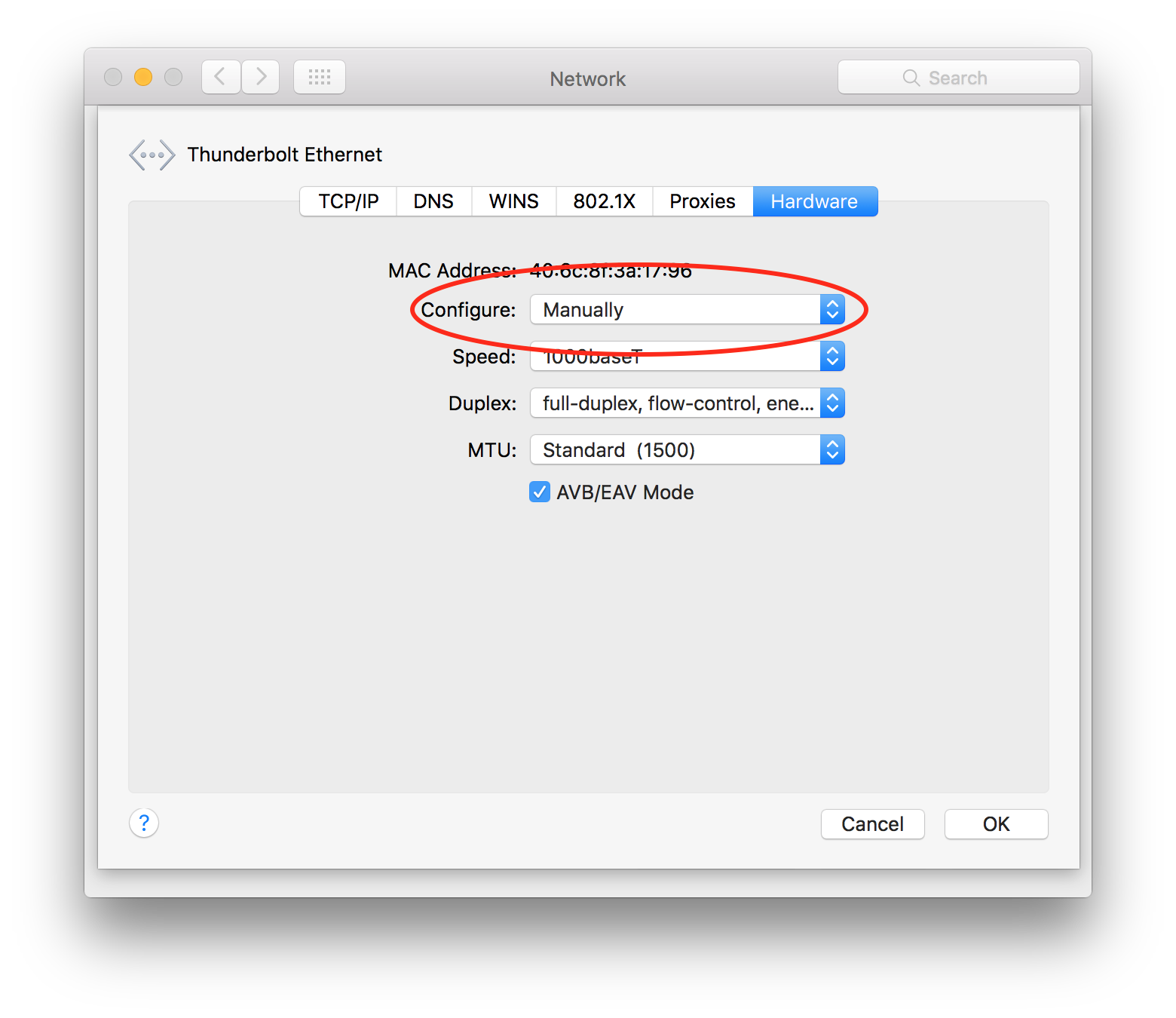
Choose full-duplex and then click OK.
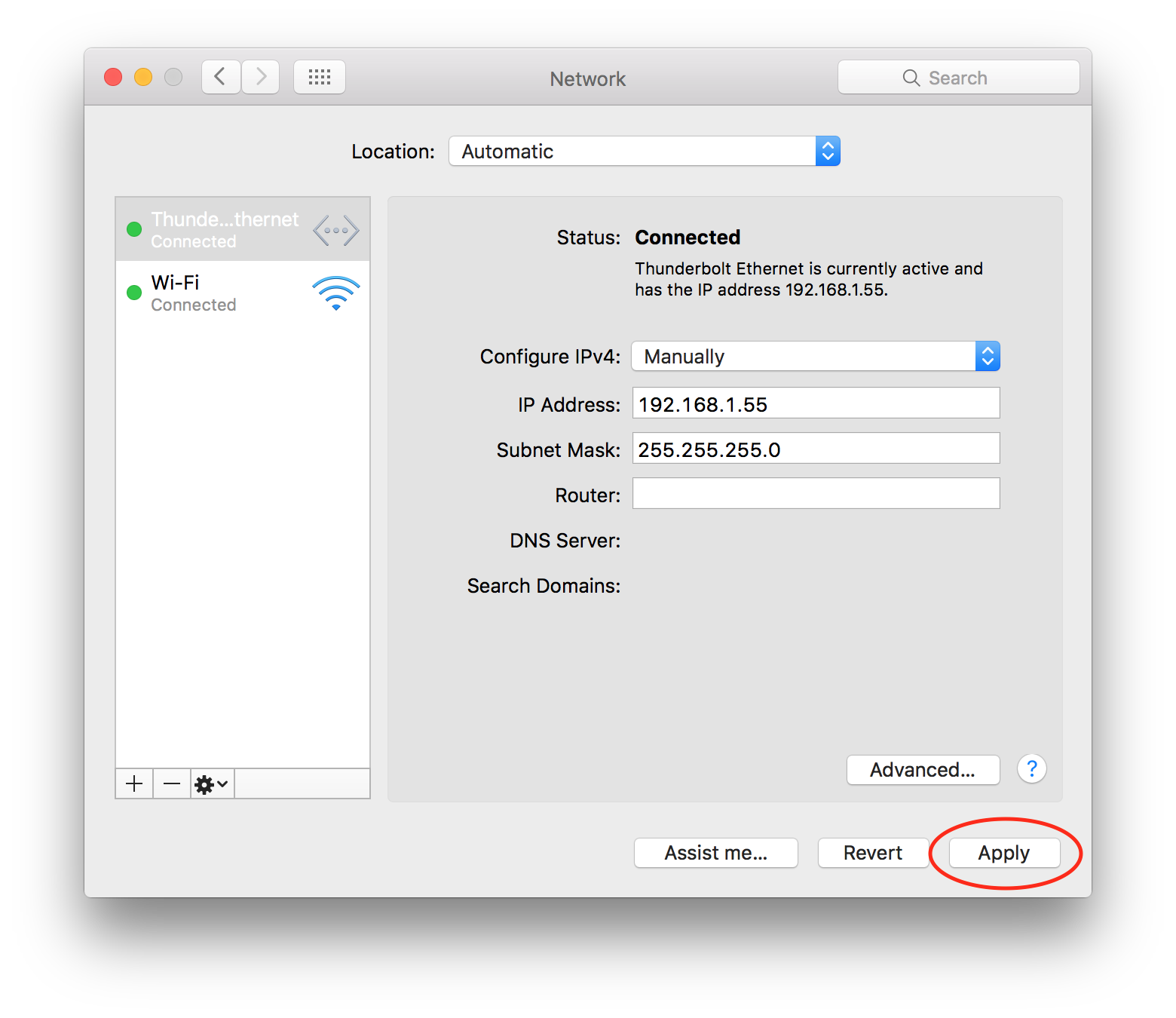
Click Apply to save the settings.
We also recommend disabling disk sleep for the machine. From System Preferences, choose Energy Saver, check Prevent computer from sleeping automatically when the display is off, and then uncheck the Put hard disks to sleep when possible option.